

Simply put
- You can use the free Model Context Protocol (MCP) server to provide web access to your local AI models. No corporate APIs, no data leakage, no fees.
- Setup is easy. After you install LM Studio and add a Brave, Tavily, or DuckDuckGo MCP configuration, your offline model becomes a private SearchGPT.
- The result is real-time browsing, article analysis, and data retrieval without ever touching OpenAI, Anthropic, or Google’s cloud.
So, do you need an AI that can browse the web and your only options are from OpenAI, Anthropic, or Google?
Let’s think again.
Data doesn’t have to go through corporate servers every time your AI assistant needs timely information. Model Context Protocol (MCP) servers allow even lightweight consumer models to have the ability to search the web, analyze articles, and access real-time data while maintaining complete privacy and zero cost.
What about the prey? Not one. These tools offer generous free tiers. Brave Search offers 2,000 queries per month, Tavily offers 1,000 credits, and certain options don’t require an API key at all. For most users, this is enough runway to never hit the limit. You don’t do 1,000 searches a day.
Before we get into the technical stuff, two concepts need to be explained. The “Model Context Protocol” is an open standard released by Anthropic in November 2024 that allows AI models to connect to external tools and data sources. Think of it as a kind of universal adapter that connects modules like Tinkeryoy that add utility and functionality to your AI models.
Rather than telling the AI exactly what to do (This is how the API call works), we tell the model. what you need It will then automatically figure out what to do to achieve that goal. MCP is not as accurate as traditional API calls and may cost more tokens to function, but it is much more versatile.
A “tool call” (also known as a function call) is the mechanism that makes this work. This is the ability of an AI model to recognize when external information is needed and call the appropriate function to retrieve it. When you ask, “What’s the weather in Rio de Janeiro?”, a model with a tool call can identify that it needs to call the weather API or MCP server, format the request appropriately, and integrate the result into the response. Without support for tool calls, the model can only use what it learned during training.
Here’s how to give your local models superpowers.
Technical requirements and setup
Requirements are minimal. In addition to Node.js installed on your computer, you need a local AI application that supports MCP (such as LM Studio version 0.3.17 or later, Claude Desktop, or Cursor IDE), and a model with tool invocation capabilities.
You must also have Python installed.
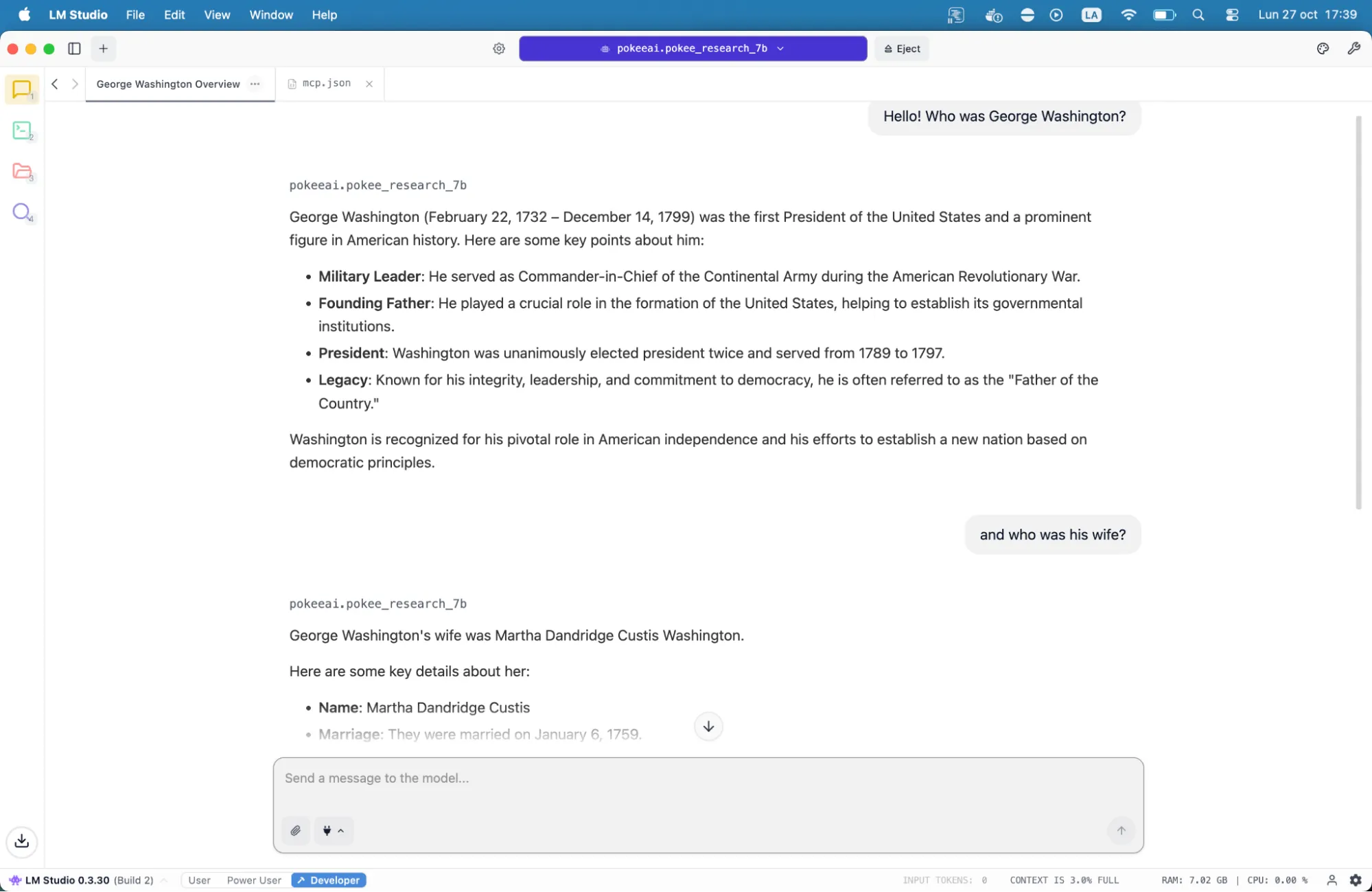
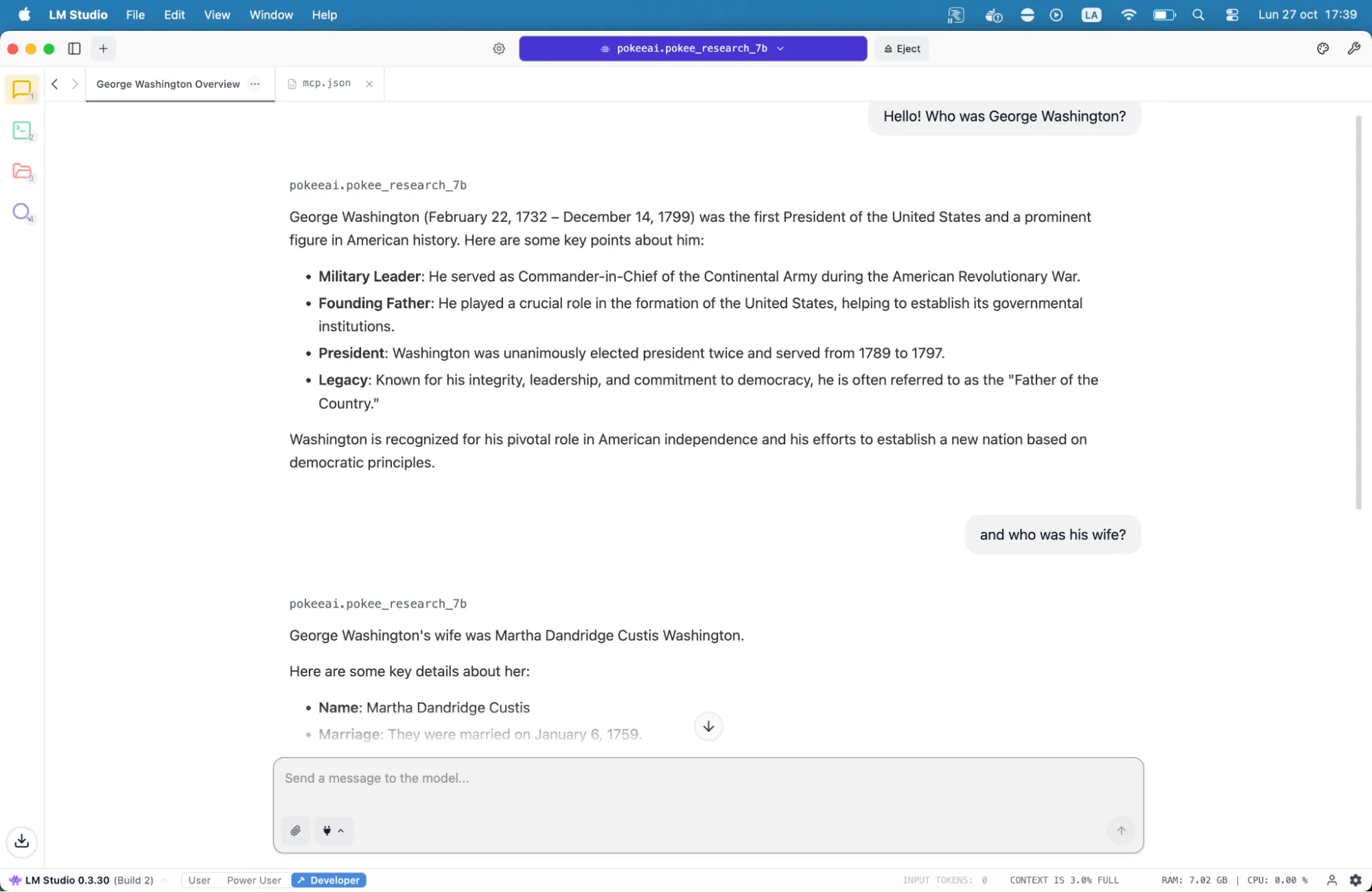
Good models with tool calls that run on consumer-grade machines include GPT-oss, DeepSeek R1 0528, Jan-v1-4b, Llama-3.2 3b Instruct, and Pokee Research 7B.
To install a model, go to the magnifying glass icon in the left sidebar of LM Studio and search for the model. Models that support tools have a hammer icon near their name. You will need these.
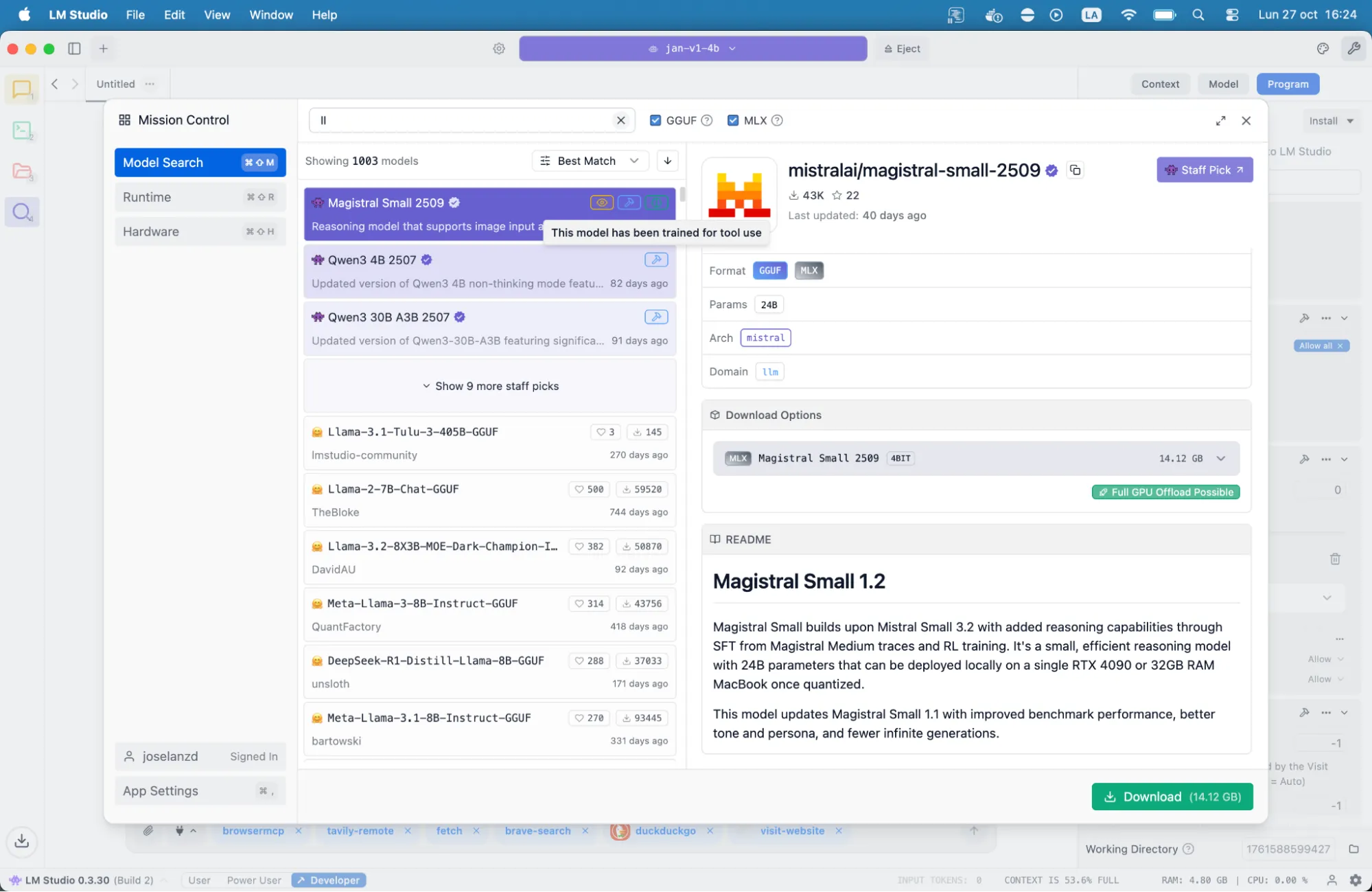
Most modern models with over 7 billion parameters support tool calls. Qwen3, DeepSeek R1, Mistral, and similar architectures all work fine. Smaller models require more explicit prompting to use search tools, but even a 4 billion parameter model can manage basic web access.
Once you have downloaded the model, you need to “load” it so that LM Studio knows it should use it. You wouldn’t want your erotic role-play model to do research for your thesis.
Search engine setup
Configuration is done through a single mcp.json file. The location varies depending on the application. LM Studio uses its configuration interface to edit this file, and Claude Desktop looks in the specific user directory. Also, other applications have their own rules. Each MCP server entry requires only three elements: a unique name, the command to run it, and any required environment variables such as an API key.
But you don’t actually need to know that. Just copy and paste the configuration provided by the developer and it will work. If you don’t want to edit it manually, at the end of this guide you’ll see one configuration ready to copy and paste. This allows some of the most important MCP servers to work.
The three best search tools available through MCP each have different strengths. Brave focuses on privacy, Tavily is more versatile, and DuckDuckGo is the easiest to implement.
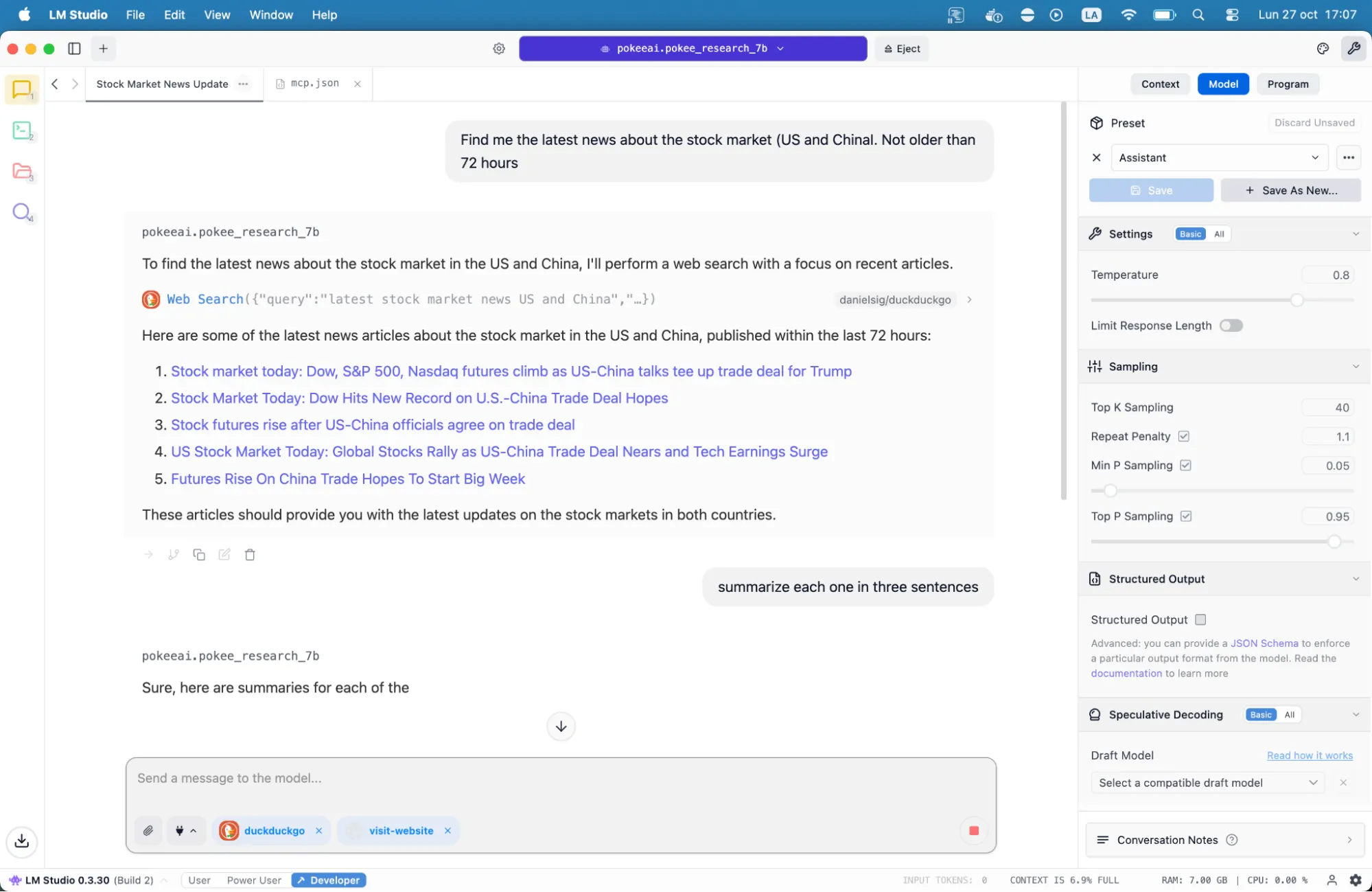
To add DuckDuckGo, simply go to lmstudio.ai/danielsig/duckduckgo and click the button that says “Run in LM Studio.”
Then go to lmstudio.ai/danielsig/visit-website, do the same thing, and click Run in LM Studio.
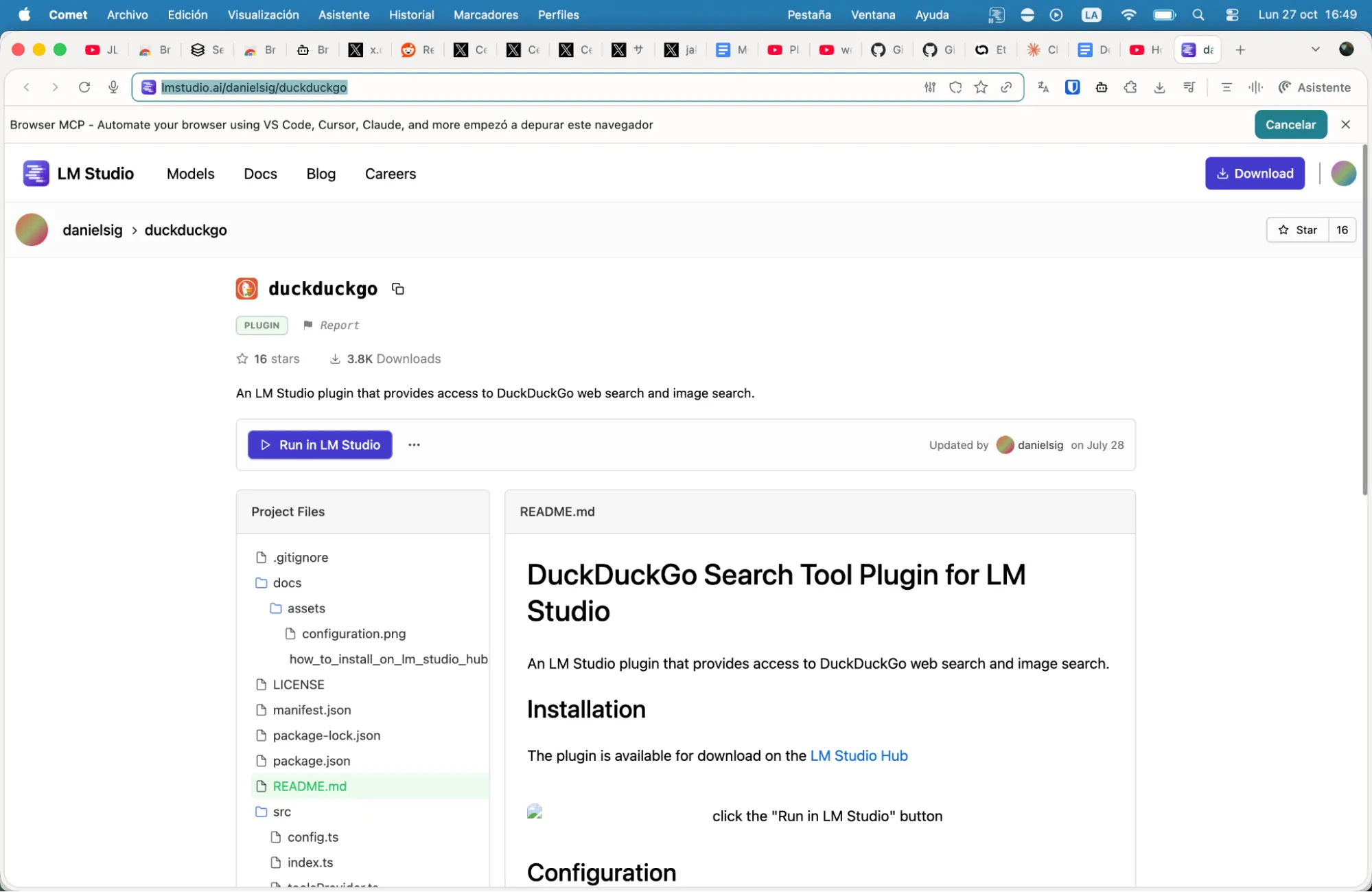
That’s it. It gave models their first superpowers. Now you can get your own SearchGPT for free, local, private and powered by Duckduckgo.
Search for the latest news, Bitcoin price, weather, and more and we’ll provide you with the latest and relevant information.
Brave Search is a little more difficult to set up than DuckDuckGo, but it offers a more robust service that runs on an independent index of over 30 billion pages and offers 2,000 free queries each month. Our privacy-first approach means we don’t profile or track users, making it ideal for sensitive research and personal queries.
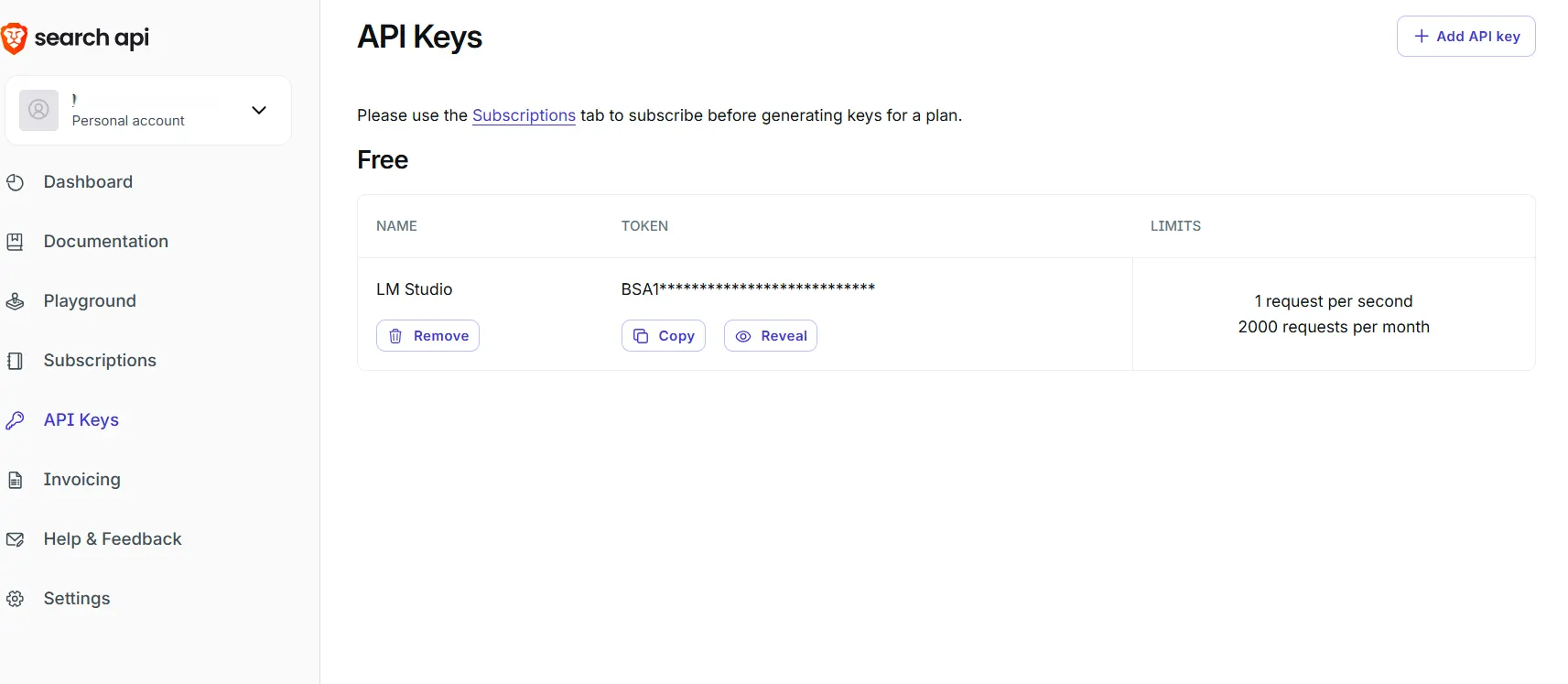
To set up Brave, sign up at brave.com/search/api to get an API key. Payment verification is required, but don’t worry, there is also a free plan.
Once there, go to the “API Keys” section, click “Add API Key” and copy the new code. Don’t share that code with anyone.
Next, go to LM Studio, click the little wrench icon in the top right corner, click the Programs tab, click the Install and Integrate button, and click Edit mcp.json.
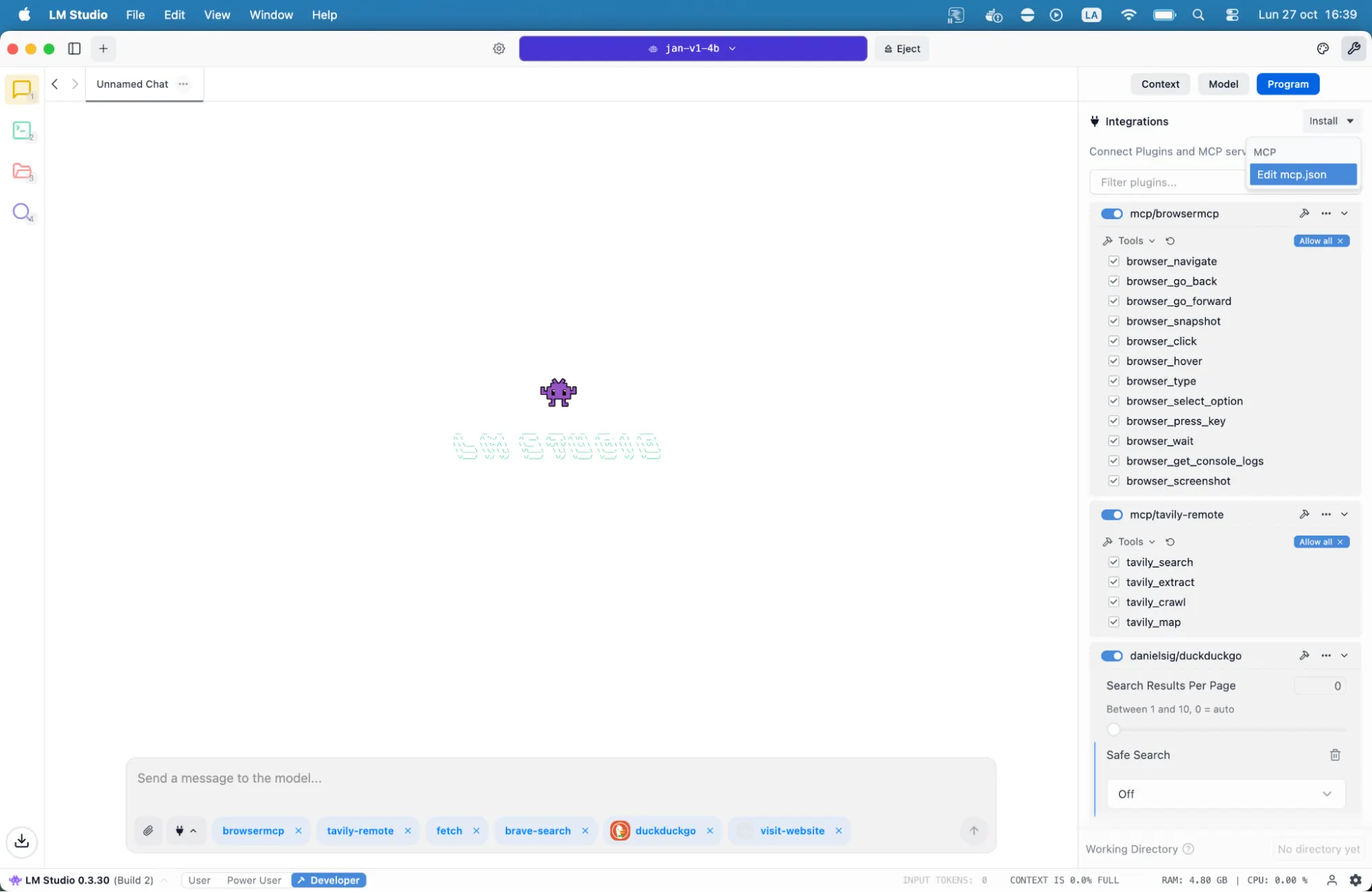
Once there, paste the following text into the field that appears: Don’t forget to put the secret API key you created inside the quotes that say “Put your brave API key here.”
{
"mcpServers": {
"brave-search": {
"command": "npx",
"args": ["-y", "@modelcontextprotocol/server-brave-search"],
"env": {
"BRAVE_API_KEY": "your_brave_api_key_here"
}
}
}
}
That’s it. Your local AI can now use Brave to browse the web. Just ask us anything and we’ll give you all the latest information we can find.
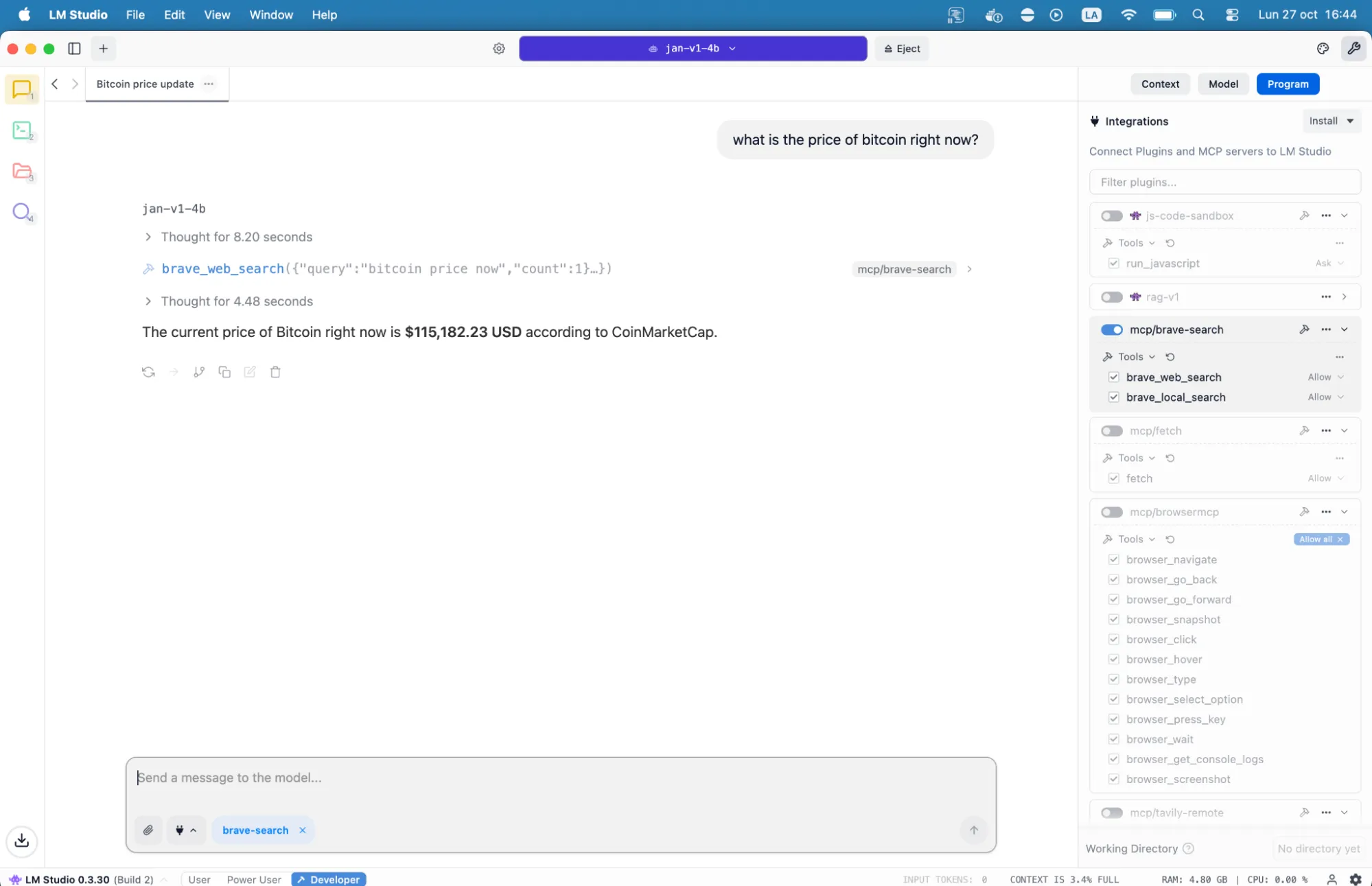
Journalists investigating breaking news need up-to-date information from multiple sources. Brave’s independent index means results are not filtered by other search engines, providing a different perspective on controversial topics.
Tavily is also a great tool for web browsing. Get 1,000 credits per month and special search features for news, codes, and images. It’s also very easy to set up. Just create an account at app.tavily.com, generate an MCP link from your dashboard, and you’re good to go.
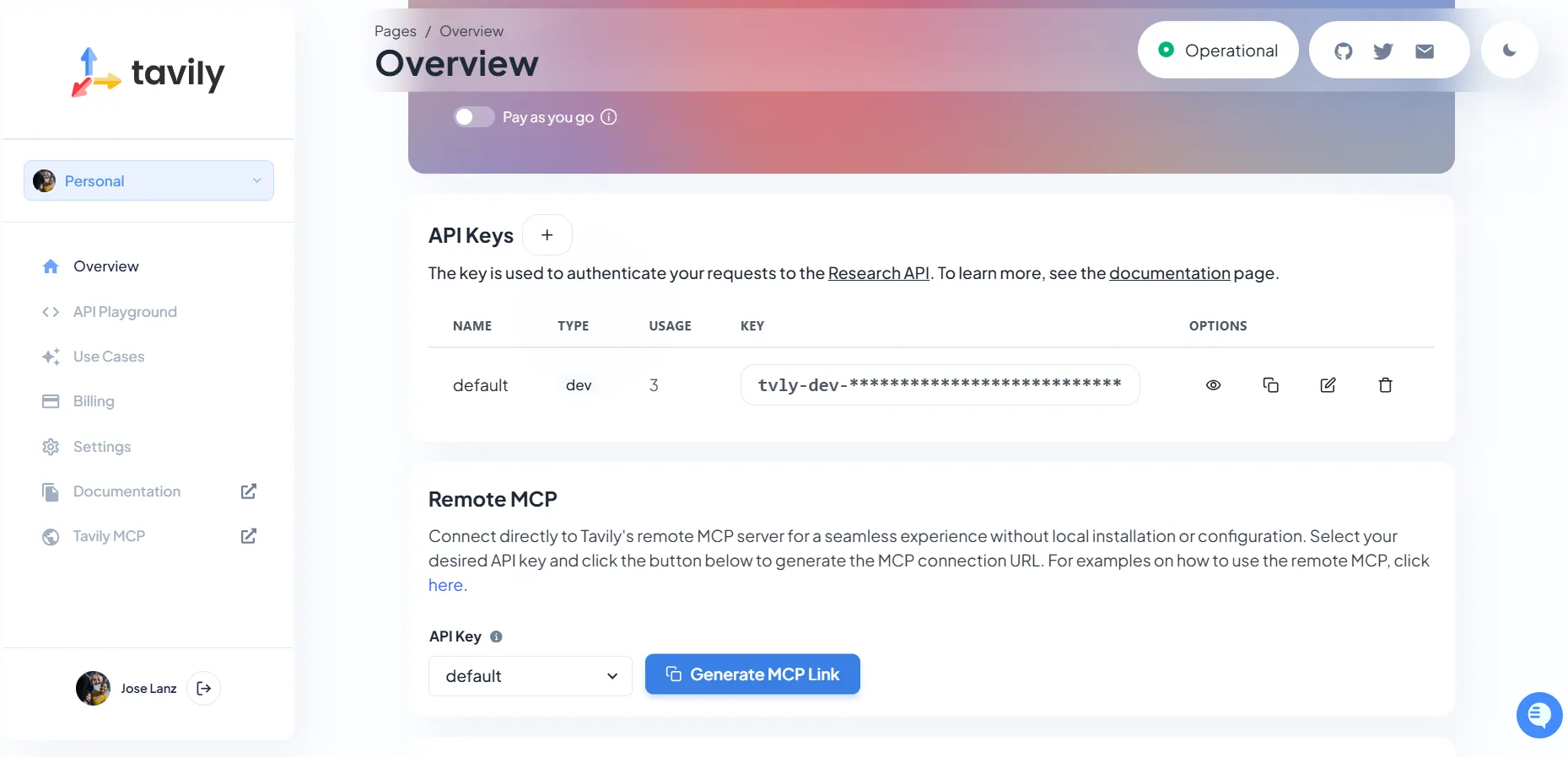
Then, just like in Brave, copy and paste the following settings into LM Studio. The configuration looks like this:
{
"mcpServers": {
"tavily-remote": {
"command": "npx",
"args": ["-y", "mcp-remote", "_API_KEY_HERE"]
}
}
}
Use case: A developer debugging an error message can ask the AI assistant to find a solution. Tavily’s code-focused search returns Stack Overflow discussions and GitHub issues that are automatically formatted for easy analysis.
Reading and interacting with websites
Besides searching, MCP Fetch also handles another problem: reading full articles. Search engines return snippets, but MCP Fetch takes the complete web page content and converts it into a markdown format optimized for AI processing. This means the model can analyze entire articles, extract key points, and answer detailed questions about specific pages.
Just copy and paste this setting. You don’t need to create an API key or anything.
{
"mcpServers": {
"fetch": {
"command": "uvx",
"args": [
"mcp-server-fetch"
]
}
To do this, you need to install a package installer called uvx. Just follow this guide and it will only take a minute or two.
This is great for summarizing, analyzing, reiterating, and even teaching. Researchers can enter the URL of a technical paper and ask, “Please summarize the methodology section and identify potential weaknesses in your approach.” This model captures and processes full text to provide detailed analysis not possible with search snippets alone.
Want something simpler? This command is now completely understandable by even the dumbest local AI.
“Please summarize this in 3 paragraphs and tell me why it is so important: https://decrypt.co/346104/ethereum-network-megaeth-350m-token-sale-valuing-mega-7-billion”
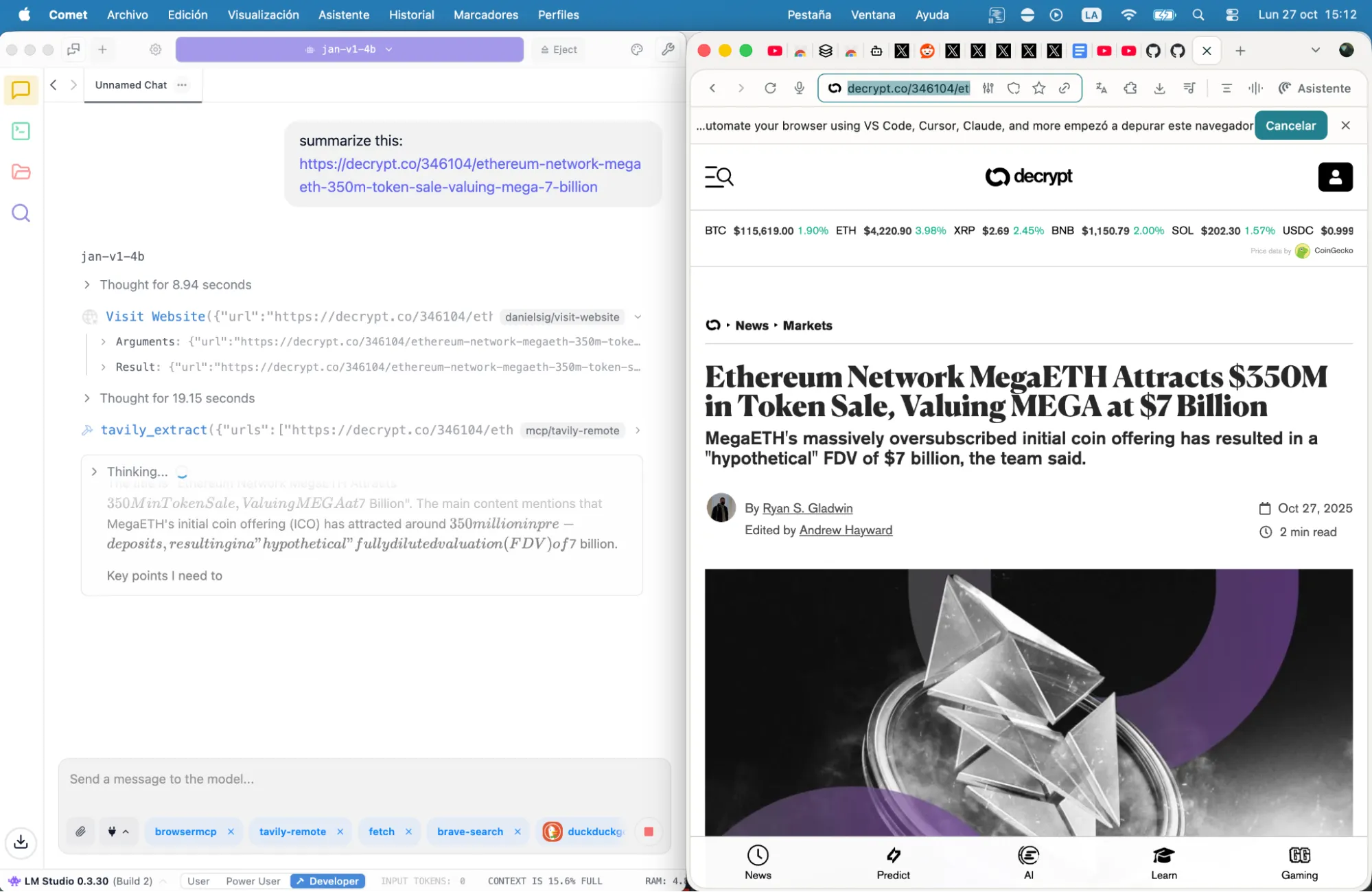
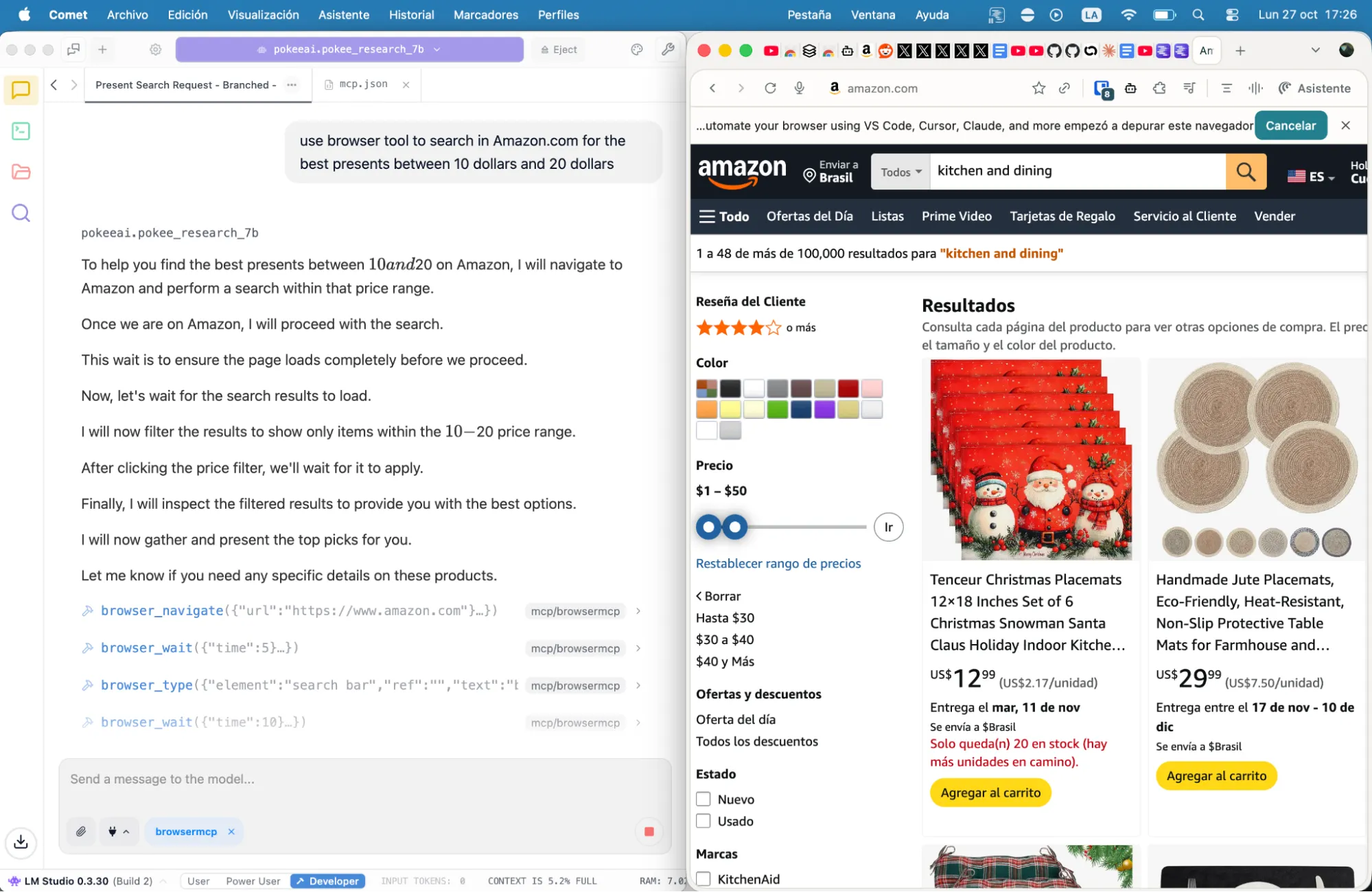
There are many other MCP tools available to provide different functionality to your models. For example, MCP Browser and Playwright allow you to interact with any website, including form-filling, navigation, and JavaScript-heavy applications that cannot be handled by static scrapers. There’s also a server for SEO audits to help you learn about Anki cards and enhance your coding abilities.
complete configuration
If you don’t want to manually configure LM Studio MCP.json, here is the complete file that integrates all these services.
Copy this, add your API key where indicated, drop it into your configuration directory, and restart your AI application. Don’t forget to install the appropriate dependencies.
{
"mcpServers": {
"fetch": {
"command": "uvx",
"args": [
"mcp-server-fetch"
]
},
"brave-search": {
"command": "npx",
"args": [
"-y",
"@modelcontextprotocol/server-brave-search"
],
"env": {
"BRAVE_API_KEY": "YOUR API KEY HERE"
}
},
"browsermcp": {
"command": "npx",
"args": [
"@browsermcp/mcp@latest"
]
},
"tavily-remote": {
"command": "npx",
"args": [
"-y",
"mcp-remote",
" API KEY HERE"
]
}
}
}
This configuration gives you access to Fetch, Brave, Tavily, and MCP Browser. No coding required, no complicated setup steps, no subscription fees, and no enterprise-grade data. Only local model web access works.
you’re welcome.
generally intelligent Newsletter
A weekly AI journey told by Gen, a generative AI model.